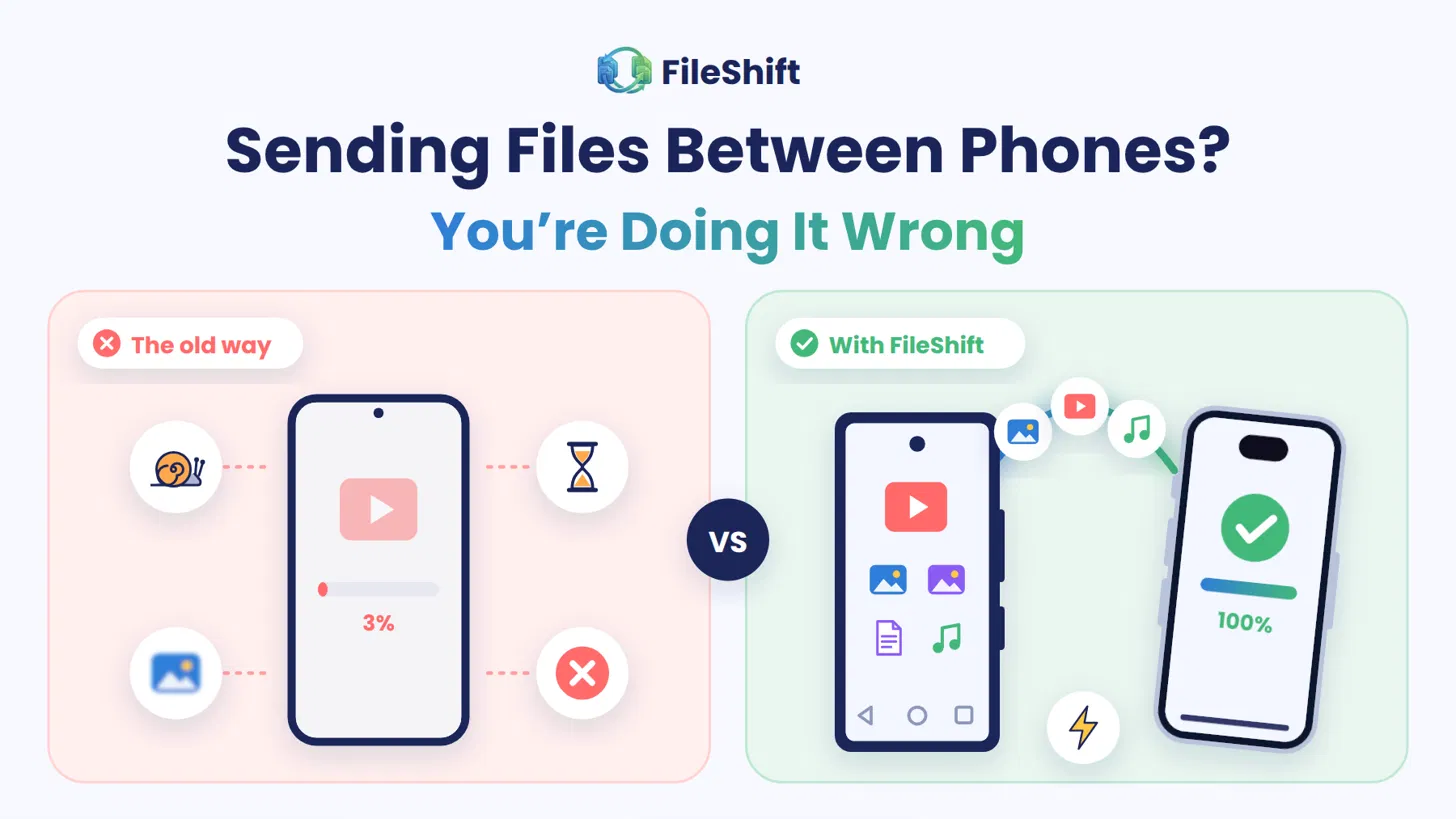
You just took 300 photos at a family wedding, and everyone wants a copy. You try WhatsApp, and the pictures come out blurry. You try Bluetooth, and it crawls. You try email, and it tells you the file is too big. Sound familiar?
Sending files from one phone to another should be easy, and with FileShift it finally is. This guide explains how phone-to-phone sharing works, why most methods let you down, and how FileShift helps you transfer videos, photos and much more in just a few taps.
What Is File Sharing Between Phones?
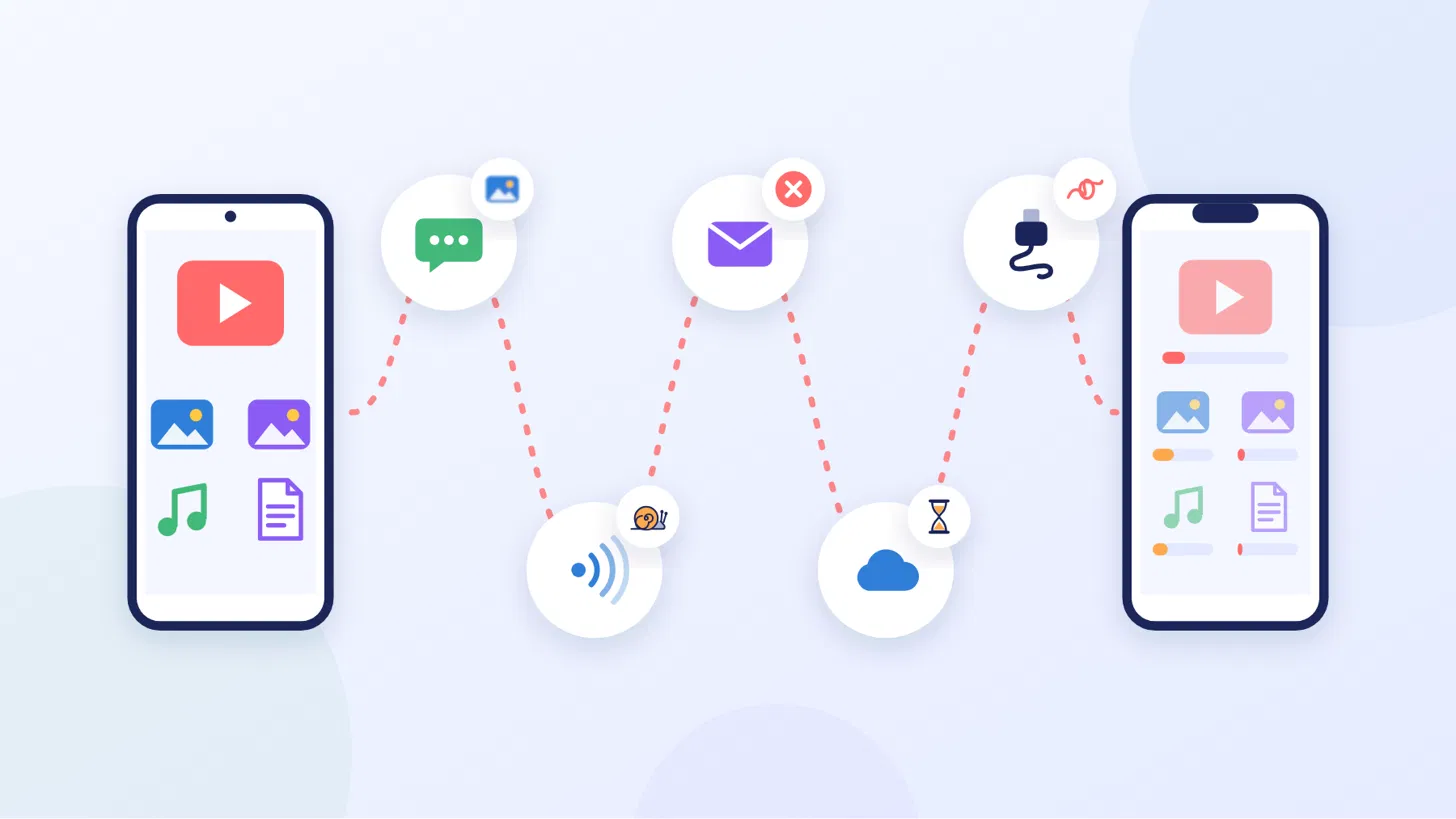
File sharing between phones simply means moving something, like a photo, video, song or document, from your phone to someone else’s. It sounds like the easiest thing in the world. In real life, it often isn’t.
Why Sending Big Files Is Still a Hassle
Phone cameras keep getting better, so photos and videos keep getting bigger. A few minutes of video can be too heavy for many apps to handle. Some apps shrink your files so they send faster, which means they arrive looking worse. Others make you sign up, upload, wait, and then download everything again. And if your internet is slow or your data is running low, you’re stuck.
Common Ways People Share Files Today
Most people reach for one of these:
- Messaging apps like WhatsApp
- Bluetooth
- Online storage like Google Drive or iCloud
- A USB cable and a computer
Each one works sometimes, but each comes with a catch. We compare them side by side further down.
What Does a File Transfer App Do?
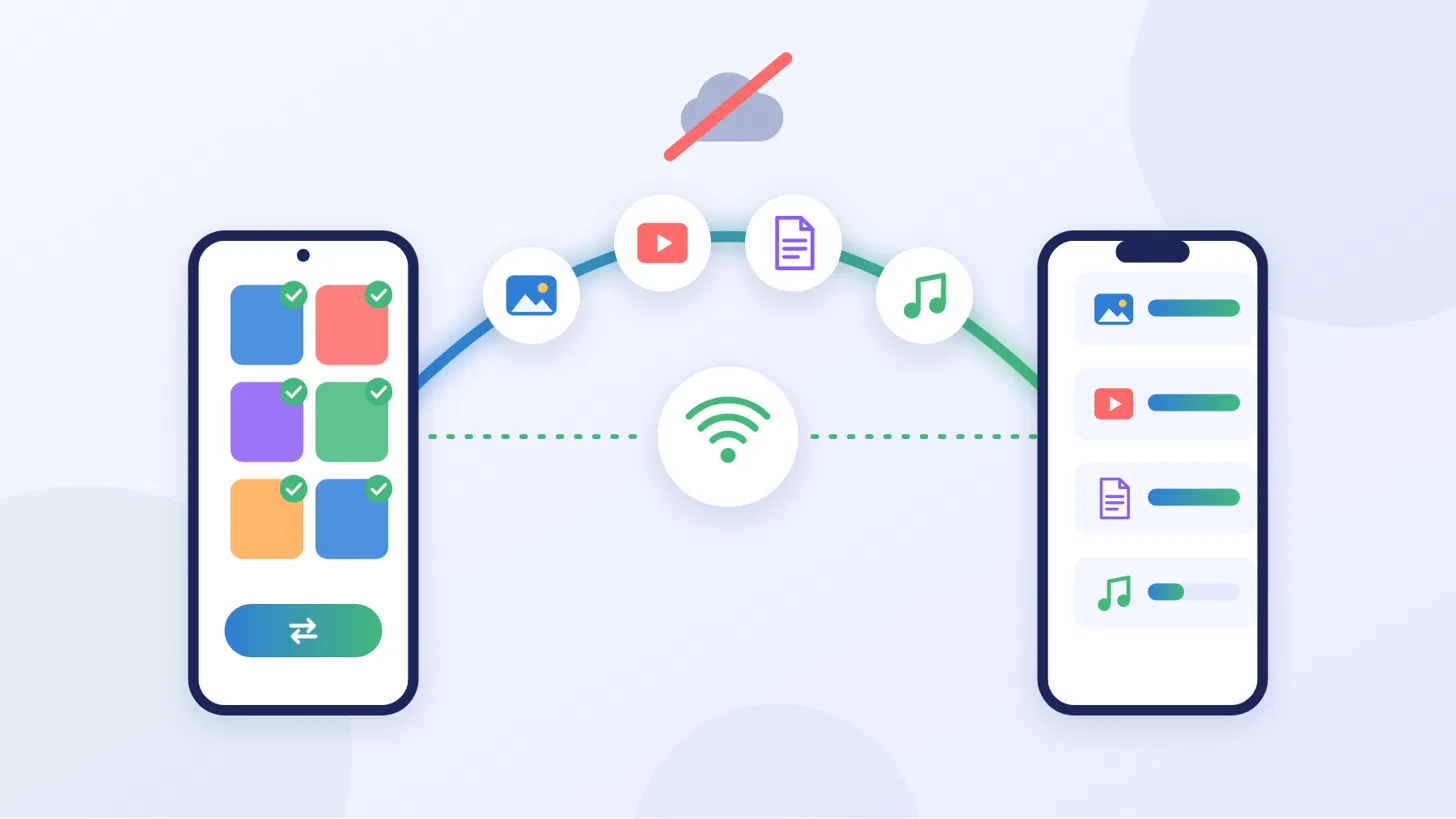
A file transfer app is built for one job: getting files from one phone to another quickly and safely. Think of it as a private bridge between two phones.
Connects Two Phones Directly
Instead of sending your files to a faraway server first, a transfer app links the two phones straight to each other. FileShift uses a feature called Wi-Fi Direct, which lets phones talk to each other over Wi-Fi without a router or internet connection. It’s the same Wi-Fi your phone already has, just used in a smarter way.
Sends Files Without Uploading Them to the Cloud
Because the phones are linked directly, your files never go online. Nothing gets uploaded, nothing gets stored on someone else’s computer, and none of your mobile data is used.
Your photos travel from your phone to your friend’s phone and nowhere else. That’s what makes a good file app both faster and more private.
Why Choose FileShift?

There are plenty of ways to send files. Here’s why more and more people now pick FileShift as their go-to share app.
Connect in Seconds With a QR Code or 6-Digit Code
Open FileShift on both phones. One phone shows a QR code, and the other scans it. No camera handy? Just read out a 6-digit code and type it in. No passwords, no confusing settings, no digging through menus.
Full-Speed Transfers Over Your Wi-Fi
FileShift uses Wi-Fi to link your phones, which is far quicker than Bluetooth. A whole movie or an entire holiday album moves across in moments, and it doesn’t touch your data plan. It’s easy to transfer photos via Wi-Fi, without waiting.
Works Between Android and iPhone
You have an Android and your friend has an iPhone? No problem. FileShift works on both, so you can share across different phones without hunting for a workaround.
Send Apps, Contacts, Photos, Videos and More
Photos arrive in their original quality, with no blurring or shrinking. Videos stay sharp. Music, documents, PDFs and contacts all go across the same easy way.
FileShift vs Other Ways to Share Files

Here’s a quick look at how FileShift stacks up against the usual options.
| Method | Speed | Big Files | Keeps Full Quality | Uses Internet or Data |
|---|---|---|---|---|
| FileShift | Very fast | No size limit | Yes | No |
| Bluetooth | Slow | Struggles | Yes | No |
| Depends on your internet | Up to 2 GB | Only if sent as a document | Yes | |
| Cloud storage and email | Depends on your internet | Limited by free space | Yes | Yes |
| USB cable | Fast | Yes | Yes | No, but needs a computer |
Swipe the table sideways to see every column.
FileShift vs Bluetooth
Bluetooth comes with every phone, but it was made for small things like earbuds, not long videos. Sending a big file can take ages, and the connection often drops halfway through. FileShift uses Wi-Fi instead, so the same video moves across in a fraction of the time.
FileShift vs WhatsApp and Messaging Apps
WhatsApp is great for chatting, but it shrinks photos and videos so they send faster, and they lose detail along the way. Sending them as a document keeps the quality, but WhatsApp limits documents to 2 GB and uses your internet every time. FileShift has no size limit and keeps every picture exactly as you took it.
FileShift vs Cloud Storage and Email
With online storage, you upload, wait, share a link, and then the other person downloads. That’s double the waiting, and free space fills up fast. iCloud gives you 5 GB free, and Google gives up to 15 GB shared across Gmail, Drive and Photos. Email is even tighter, since Gmail only lets you attach 25 MB per message. FileShift skips the upload completely.
FileShift vs a USB Cable
A cable is quick, but you need the right cable, a computer, and some patience with folders. Most of us don’t carry all that around. FileShift does the same job without any wires, wherever you are.
Everything FileShift Can Do

Send Any Type of File
Photos, videos, music, documents, PDFs, spreadsheets and more. If it’s on your phone, FileShift can send it. Pick your files, tap send, and it’s one simple transfer no matter the size.
Send Apps and Contacts
On Android, you can send installed apps straight to a friend, so they don’t have to search for them. Contacts go across too. Got a new phone? FileShift turns a stressful switch transfer into a few quick taps, so your old phone’s photos, contacts and files land on the new one in minutes.
Send to iPhone
Mixed family of Android and iPhone users? FileShift closes the gap. Send from Android to iPhone, or iPhone to Android, with the same easy steps.
4 Easy Ways to Connect
Pick whichever feels easiest:
- Scan a QR code
- Type in a 6-digit code
- Send an invite link by message
- Find nearby phones on the same Wi-Fi
Smart Backup Connection
If one way of connecting runs into trouble, FileShift quietly switches to another, so your transfer keeps going instead of failing halfway.
Live Speed and Time Left
While files are moving, you can see how fast they’re going and how much time is left. No more guessing when it’s safe to put your phone down.
Transfer History and Resend
FileShift keeps a list of everything you’ve sent and received. Need to send the same files again? Just tap resend.
Built-In File Manager, Media Players and Cleaners
Browse your files, watch videos and play music right inside the app. The built-in cleaners also help you find duplicate photos and clutter, so you can free up space on your phone.
Final Thoughts: Share Files the Easy Way
Sharing files shouldn’t mean blurry photos, slow Bluetooth or “file too large” errors. FileShift links two phones directly, keeps your pictures in full quality, and never touches your data plan. Whether you want to transfer videos from a trip, move everything to a new phone, or share photos with family on an iPhone, it takes just a few taps.
See all features and download links on the FileShift app page, or learn how to send photos, videos, music, documents and more in one go.
Ready to try it?
Download FileShift free on Google Play or the App Store and send your first file in seconds.
FAQs
Is FileShift free?
Yes. FileShift is free to download on Google Play and the App Store, with no limits on how many files you send. An optional paid version is available if you’d like to remove ads.
How do I connect two phones with FileShift?
Open FileShift on both phones and pick the easiest way for you: scan a QR code, type in a 6-digit code, tap an invite link, or find nearby phones on the same Wi-Fi. Once connected, choose your files and tap send.
Can I send files from Android to iPhone?
Yes. FileShift works on both Android and iPhone, so you can send photos, videos and files between them in either direction.
Can I use FileShift to move everything to a new phone?
Yes. You can move your photos, videos, music, documents and contacts from your old phone to your new one in minutes, with no cables or computer needed.
Are my files safe with FileShift?
Yes. Your files go straight from one phone to the other and are never uploaded online. You don’t even need to create an account.
ExtreemTek newsletter
Get practical IoT and AI engineering tips in your inbox
Guides, checklists and lessons from real product builds. No spam, unsubscribe anytime.
Read our privacy policy.
